
When working in Avid Media Composer, there are a few project optimizations that can help make Avid run smoothly. Here are some settings that we recommend changing:
- Verify Search Directory
- Disable PhraseFind AI / Phonetic Indexing
- Disable Linked Media Management
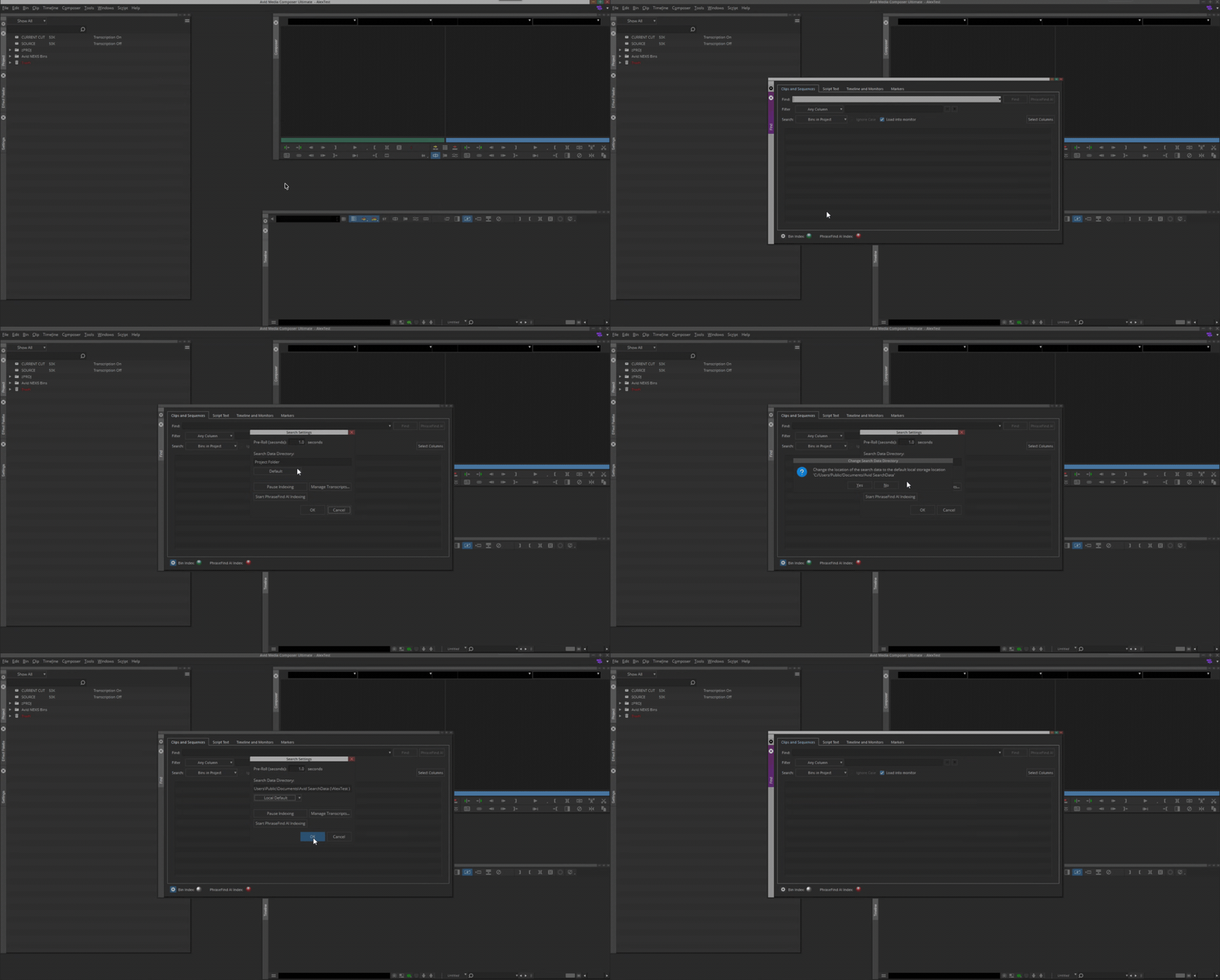
Verify Search Directory is Local Default
When an Avid Project is first set up, Avid will default to pointing to the Y: Drive. This can cause Avid to lag and should be changed. To change this in Avid:
- Open Find (Ctrl + F)
- Click on the gear in the lower-left corner of the window.
- Click the dropdown menu under “Search Data Directory:” and change the option to “Local Default.”
- A pop-up will appear asking to confirm the location of the new search database on the C: Drive; click “Yes.”
- Click “OK” to save.
Disable PhraseFind AI Indexing (Formerly Phonetic Indexing)
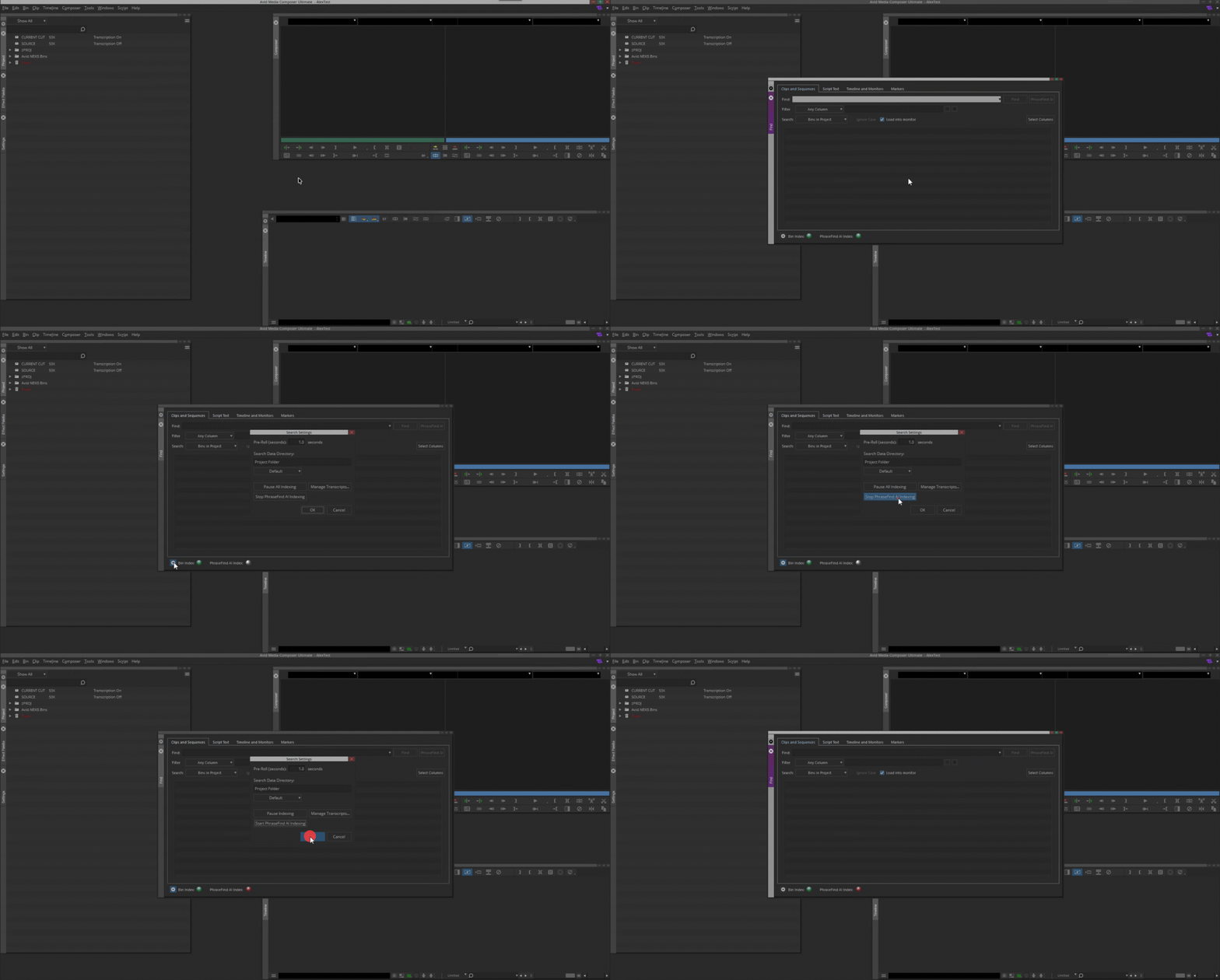
Particularly in large projects, generating the PhraseFind AI database can be resource-intensive. If you're experiencing responsiveness issues in Media Composer, try disabling PhraseFind. You can always re-enable PhraseFind AI later when needed.
To disable it:
- Open Find by pressing Control + F.
- Click the gear icon in the lower-left of the “Find” window.
- Click “Stop PhraseFind AI Indexing.”
- Click “OK” to save.
Disabling Linked Media Management
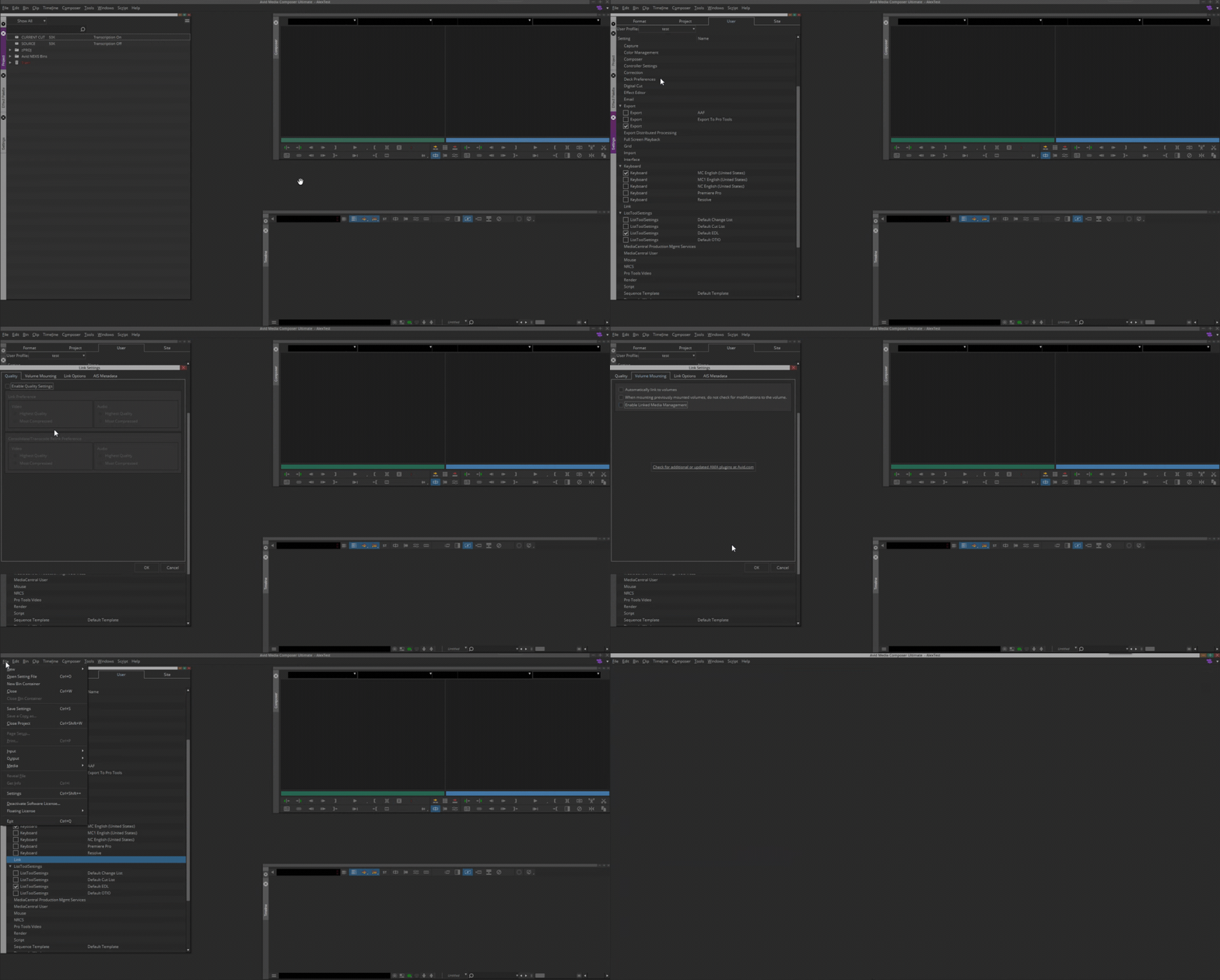
If you are working with a large number of AMA clips, you may notice that Media Composer will stall and give a not responding message when interacting with those bins and sequences. Having Linked Media Management enabled adds additional processes to track this media that is probably not necessary for an uprezing. Disabling Linked Media Management will drastically improve performance with AMA media.
- Go to File → Settings → User → Link → Volume Mounting.
- Uncheck “Enable Linked Media Management”.
- Click “OK” on the pop-up explaining that Avid will need to reboot.
- Close Avid.
- Rename or delete the directory C:\Users\Public\Documents\Avid Media Composer\AMA Management.
- Launch Avid.